How to Fix Controller Drift on Xbox and PlayStation (Complete Guide)
Controller drift is one of the most common and frustrating problems console gamers experience. If your character moves, your camera rotates, or your menu scrolls even when you are not touching the joystick, your controller is likely suffering from analog stick drift.
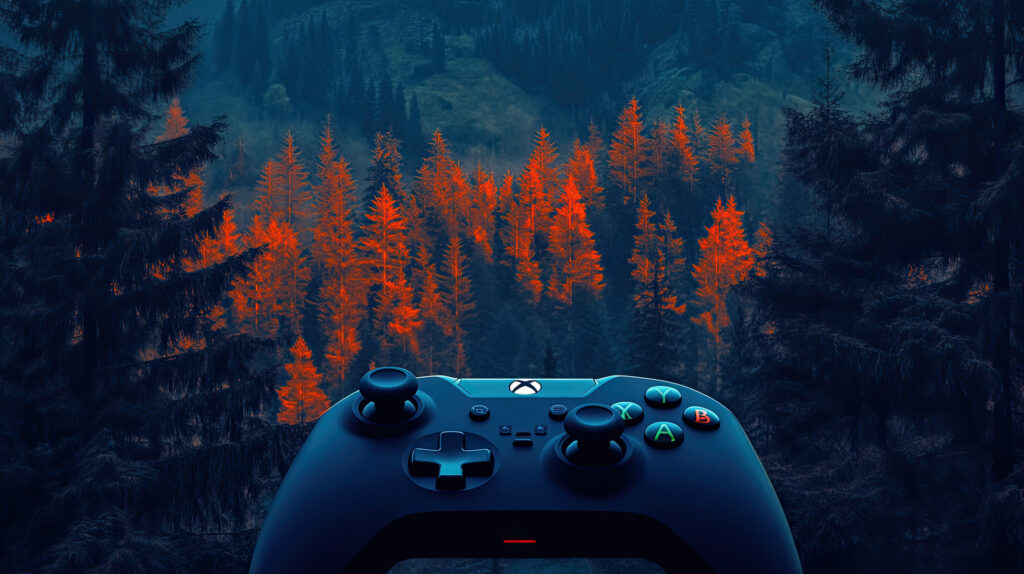
This issue can affect players on consoles like Xbox Series X, PlayStation 5, and older systems such as Xbox One and PlayStation 4.
The good news is that controller drift does not always mean your controller is permanently broken. In many cases, you can fix or reduce the problem with simple troubleshooting steps.
This guide explains what causes controller drift and how to fix it step by step.
What Is Controller Drift?
Controller drift occurs when the analog stick sends movement signals to the console even when the stick is in its neutral position.
For example:
- Your character walks forward without touching the controller
- The camera slowly rotates by itself
- Menu selections move automatically
These symptoms happen because the controller’s internal sensors are incorrectly detecting movement.
Why Controller Drift Happens
Several factors can cause controller drift.
1. Dust and Dirt Inside the Controller
Small particles such as dust or debris can get inside the analog stick mechanism.
Over time, these particles interfere with the sensors and cause incorrect movement detection.
This is one of the most common causes of drift.
2. Wear and Tear
Controllers contain mechanical components that wear down after extensive use.
Gamers who play frequently may experience drift after months or years of use.
The analog stick modules contain small sensors that gradually degrade.
3. Damaged Analog Stick Sensors
Analog sticks use potentiometers to detect movement. If these components become damaged or worn out, the controller may incorrectly detect input.
This often happens after:
- heavy gameplay
- dropping the controller
- long-term usage
4. Calibration Problems
Sometimes drift is caused by software calibration issues rather than hardware problems.
Improper calibration can cause the console to misinterpret stick position.
Fortunately, calibration issues are easier to fix.
Step 1: Restart Your Console
Before attempting complex repairs, try the simplest solution first.
Restart your console and reconnect the controller.
How to Restart
- Turn off your console completely
- Wait 30 seconds
- Turn the console back on
- Reconnect your controller
Sometimes this resets temporary software issues that cause drift.
Step 2: Clean the Analog Sticks
Dust and debris are common causes of drift, and cleaning the controller can often fix the problem.
What You Need
- compressed air
- cotton swabs
- isopropyl alcohol (optional)
Cleaning Steps
- Turn off the controller
- Use compressed air around the base of the analog stick
- Move the stick in circular motions while cleaning
- Lightly clean the edges with a cotton swab
This removes particles that may interfere with the internal sensors.
Step 3: Reset the Controller
Resetting your controller can restore factory settings and fix calibration issues.
Resetting a PlayStation Controller
Controllers like the DualSense Wireless Controller include a small reset button on the back.
Steps:
- Turn off the console
- Locate the small reset hole on the back of the controller
- Use a paperclip to press the reset button for about 5 seconds
- Reconnect the controller to the console
Resetting an Xbox Controller
Controllers such as the Xbox Wireless Controller do not have a physical reset button, but you can reset them by reconnecting.
Steps:
- Turn off the console
- Remove the controller batteries
- Wait about 30 seconds
- Insert the batteries and reconnect
Step 4: Update Controller Firmware
Controller firmware updates can improve performance and fix bugs.
Manufacturers occasionally release updates that address drift or calibration issues.
How to Update Firmware
For most consoles:
- Open console settings
- Navigate to controller settings
- Check for available updates
- Install updates if available
Keeping firmware up to date helps maintain optimal performance.
Step 5: Adjust Dead Zone Settings
Many modern games allow players to adjust dead zone settings.
The dead zone is the amount of movement required before the game registers input.
Increasing the dead zone slightly can reduce the effects of drift.
Example
If your controller drifts slightly to the left, increasing the dead zone prevents small movements from being detected.
However, setting the dead zone too high may reduce aiming precision in competitive games.
Step 6: Recalibrate the Controller
Some systems and games allow manual controller calibration.
Recalibration helps the console correctly identify the center position of the analog stick.
Calibration tools may be available through:
- console settings
- game settings menus
- PC controller configuration tools
Step 7: Replace the Analog Stick Modules
If cleaning and resetting do not fix the problem, the analog stick module itself may be worn out.
In this case, the internal component must be replaced.
Repair Options
You can:
- repair the controller yourself
- send it to a repair service
- replace the controller
DIY repair requires opening the controller and soldering a new analog stick module onto the circuit board.
Step 8: Use Professional Repair Services
If you are not comfortable repairing electronics, professional repair services can fix controller drift.
Repair technicians can replace:
- analog stick modules
- sensors
- damaged internal components
This option is often cheaper than purchasing a brand-new controller.
Step 9: Prevent Controller Drift
Although drift cannot always be avoided, proper care can reduce the risk.
Keep Controllers Clean
Store controllers in clean environments and avoid dusty surfaces.
Avoid Dropping Controllers
Physical impact can damage internal components.
Store Controllers Properly
Use protective cases when transporting controllers.
Avoid Excessive Pressure
Do not press the analog sticks too aggressively during gameplay.
When Should You Replace Your Controller?
If drift continues even after cleaning and repairs, replacing the controller may be the best option.
Signs you may need a new controller include:
- severe drift in multiple directions
- unresponsive analog sticks
- repeated hardware failures
Modern controllers are designed for durability, but heavy use eventually causes wear.
Final Thoughts
Controller drift is a common issue that affects many console gamers. Fortunately, it is often possible to fix the problem through cleaning, resetting, recalibration, or firmware updates.
If the issue is caused by worn-out hardware, repairing or replacing the analog stick modules may restore your controller’s performance.
By maintaining your controller properly and addressing issues early, you can extend its lifespan and enjoy smoother, more accurate gameplay.